

Platform Overview & Navigation
Learn how to use the Home Dashboard and main navigation to move from log in to insight.


Learn how to use the Home Dashboard, top bar, and Settings navigation to move from log-in to insight.
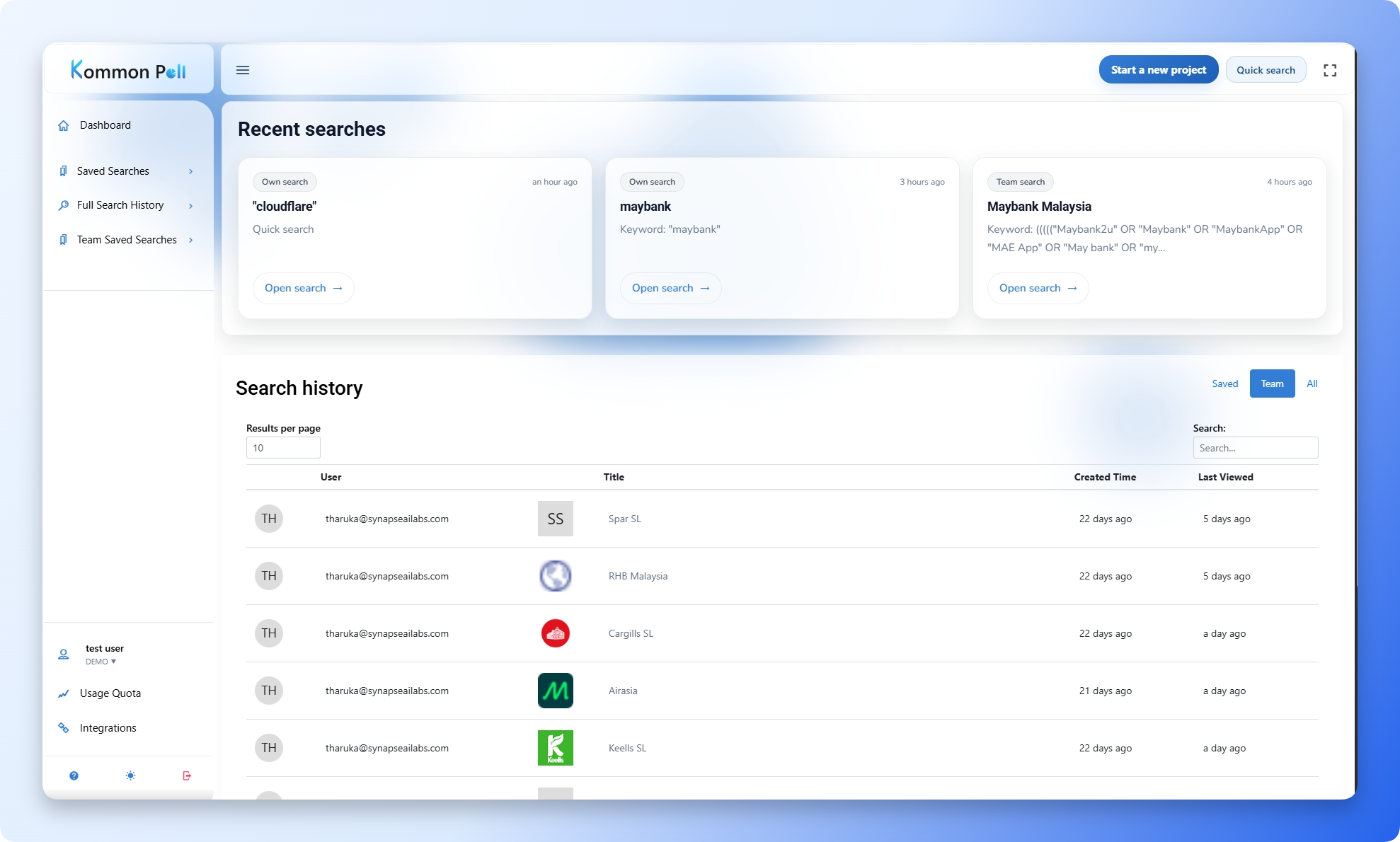
The Kommon Poll homepage is a quick-access hub where you can resume work, review searches, manage team context, and open the platform settings that control monitoring, reports, notifications, billing, and account details.
Homepage Layout
The homepage is divided into three main areas:
- Left navigation panel
- Top action bar
- Main workspace area with recent searches and search history
Left Sidebar
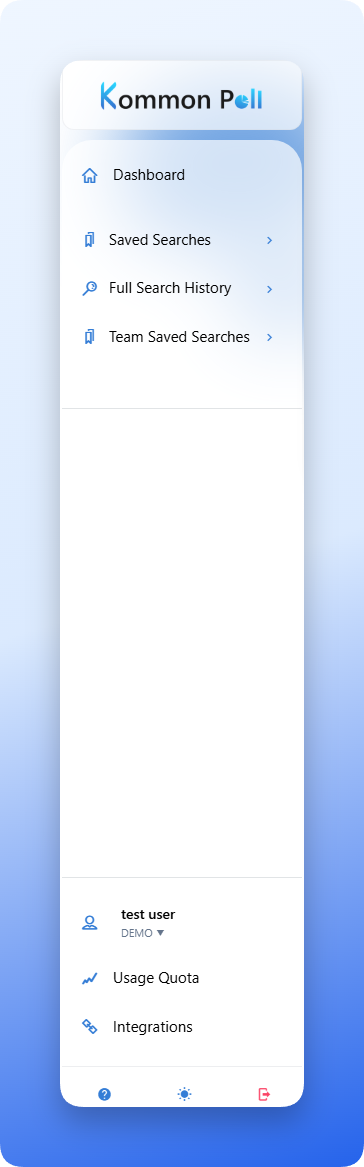
The left sidebar provides access to the main app areas.
Dashboard
Returns you to the main search and history view.
Saved Searches
Opens your saved keyword searches.
Full Search History
Shows saved and unsaved searches across your workspace, with filtering and sorting options.
Team Saved Searches
Shows searches saved by team members. This entry is dynamic and may only appear when team-saved searches are available.
Settings
Opens the Settings hub. The current Settings page is grouped into:
| Settings group | Items |
|---|---|
| Account settings | Account details, Subscriptions, Billing, Teams, Activity |
| Monitoring | Social Tracking, Social Linking |
| Report Settings | PDF Formats, Slide Formats |
| Notifications | Notification Center, Notification Rules, Destinations |
Use these paths for common setup tasks:
- Sidebar -> Settings -> Monitoring -> Social Tracking
- Sidebar -> Settings -> Monitoring -> Social Linking
- Settings -> Notification Center
- Settings -> Notification Rules -> Rules
- Settings -> Notification Rules -> Destinations
- Sidebar -> Settings -> Report Settings -> PDF Formats
- Sidebar -> Settings -> Report Settings -> Slide Formats
- Sidebar -> Settings -> Account settings -> Account details
- Sidebar -> Settings -> Account settings -> Subscriptions
- Sidebar -> Settings -> Account settings -> Billing
- Sidebar -> Settings -> Account settings -> Teams
- Sidebar -> Settings -> Account settings -> Activity
Manual Tracking and integration requests are not separate sidebar items. Open them from Sidebar -> Settings -> Monitoring -> Social Tracking, then use the Manual Tracking or Requests buttons.
Profile Section
The profile area shows your current user and team context. If you belong to more than one team, use the team switcher before creating searches, changing settings, or reviewing quota.
Usage Quota
Usage information is handled through the Settings flow and quota panels rather than as a standalone left-sidebar destination in the current interface.
Top Action Bar

The top bar provides quick actions.
Kommon Poll AI Ask
The top bar can show an AI search field with the placeholder Ask Kommon Poll AI about these results... and an Ask button. It appears in supported result or dashboard contexts and sends your question to Kommon Poll AI with the current results as context.
Start a New Project
Opens the guided onboarding flow for creating a saved listening project.
Quick Search
Runs a lightweight search without completing the full project setup flow. This control can be dynamic; if your workspace has no usable saved searches yet or only a seeded sample search, Quick Search navigation may not appear until there is more search history.
Full Screen / Expand View
Toggles a more focused view of the current screen.
Recent Searches
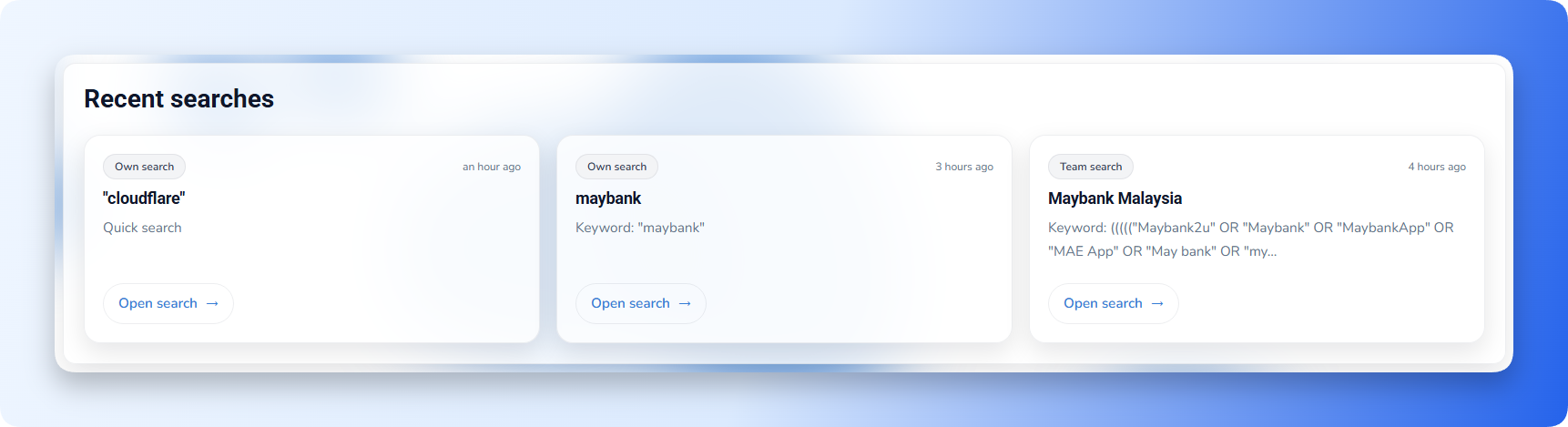
Recent search cards show:
- Search type, such as own search or team search
- Search name
- Last run or last viewed time
- Query preview
- Open search action
Use this area to resume recent investigations without rebuilding the query.
Search History
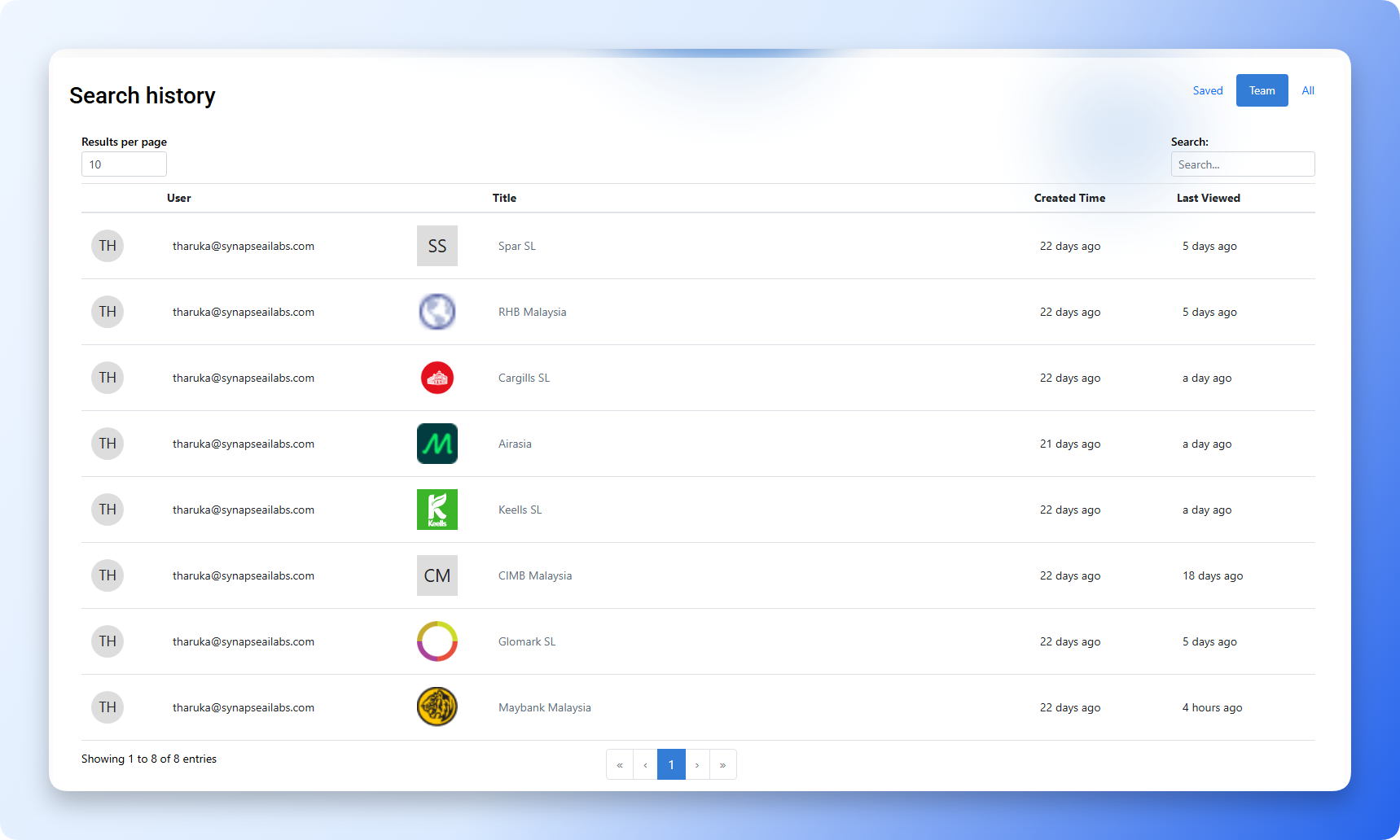
The search history table includes:
- Saved tab for searches you saved
- Team tab for team-saved searches
- All tab for the broader search history
- Search box for finding searches by title or keyword
- Results-per-page controls
This area is useful for teams managing multiple brands, campaigns, and recurring investigations.
Search History Actions
Depending on the row and permissions, search history actions can include:
- Reopen or run the search again.
- Remove a saved or historical item where permitted.
- Open report settings or report branding for the saved search.
- Open notification settings for the saved search.
- Open search settings to adjust project details, query, topics, official accounts, or branding.
Use the Saved tab for searches you own, Team for searches saved by team members, and All for the broader search history, including unsaved searches.
Search Item Icons
Search entries may show:
- A brand logo, when available
- Initials, when no logo is available
These identifiers make long histories easier to scan.
What You Can Do From The Homepage
From the homepage you can:
- Re-open recent searches
- Start a new project
- Run a quick search
- Browse saved, team, and full search history
- Ask Kommon Poll AI about supported result contexts
- Open Settings for monitoring, notifications, report formats, account, billing, team, and quota work