

Setting Up Competitor Monitoring
Configure competitors properly so Kommon Poll can display clean comparisons and detailed analysis.



Configure competitors properly so Kommon Poll can display clean comparisons and detailed analysis.
Competitor monitoring helps you understand how your brand performs relative to other brands. To ensure accurate competitor dashboards, save your brand and every competitor as separate searches.
1. Create a Search for Your Brand
Start by creating a dedicated search for your own brand:
- Enter your brand name and variations.
- Add product names, abbreviations, or related keywords.
- Save this search.
Your brand must be saved first before you add competitors.
2. Save Each Competitor as a Separate Search
After saving your brand search:
- Create a new search for each competitor.
- Add competitor brand names, product names, nicknames, and keyword variations.
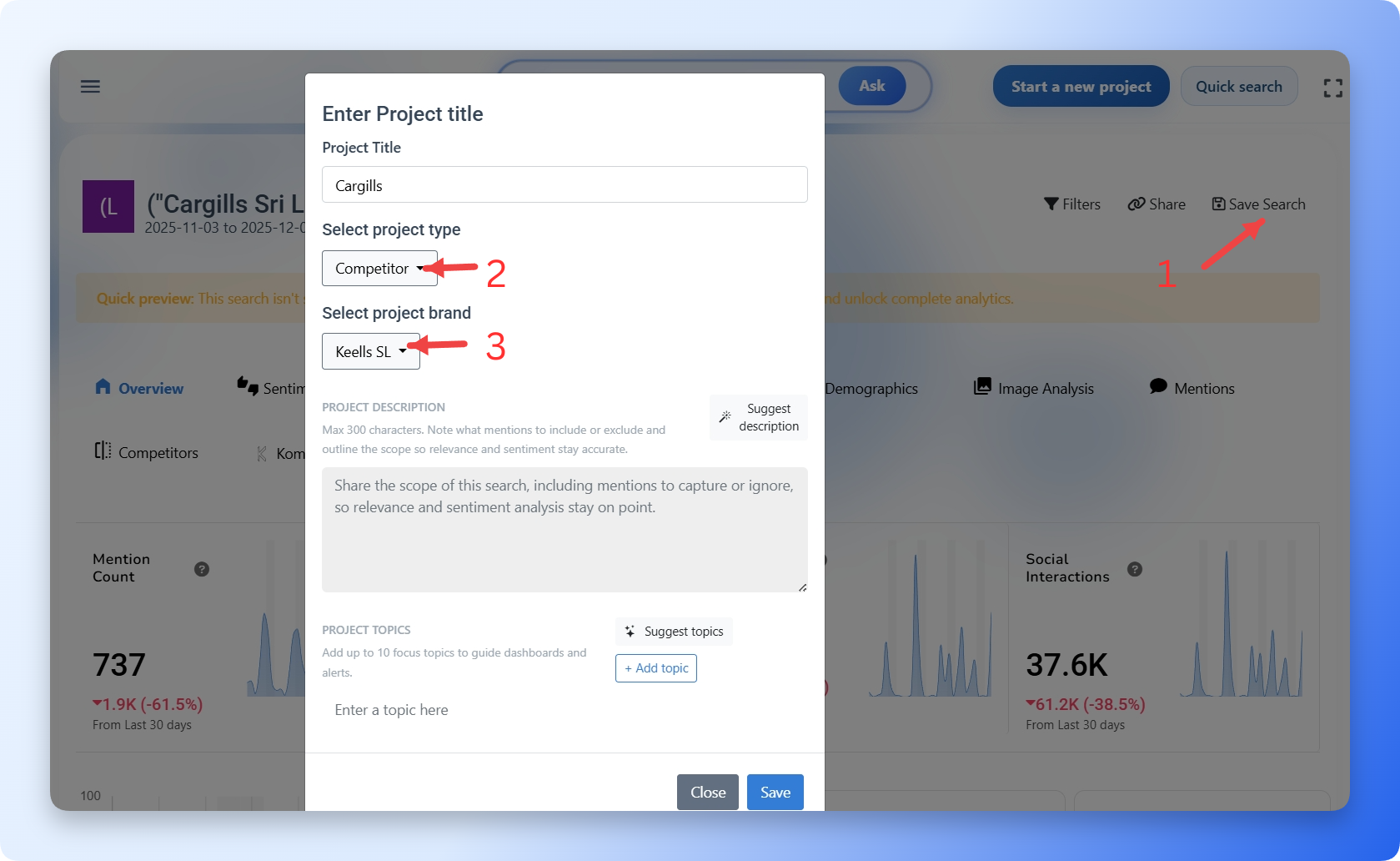
- Configure your project before saving:
- Set Project Type = Competitors.
- Set Project Brand = Your Brand.
This ensures your brand becomes the main reference and every other saved search is handled as a competitor. Save each competitor individually so every dataset stays clean and comparable.
3. Viewing Competitor Summaries
Once your brand and competitors are saved:
- Open the Competitor tab in the Kommon Poll dashboard.
- You will see a summary for each competitor, including:
- Mention count
- Influence score
- Social reach
- Interactions
- Sentiment distribution
- Bubble chart comparison
This screen gives you a quick brand vs. competitor benchmark for visibility, influence, and tone.
4. Viewing Detailed Competitor Analysis
To dig deeper:
- Click any competitor search to open it individually.
- You will see the full set of dashboards available for your brand:
- Sentiment analysis
- Mention analysis
- Demographics
- Keywords, hashtags, and emoji breakdowns
- Reach and influence metrics
- Platform distribution
These standalone views deliver contextual stories for each competitor so you can see exactly what is resonating for them.
Summary
Save a separate search for your brand and then one for every competitor, using their specific keywords and project settings. Once saved, the Competitor tab furnishes automatic comparison summaries while each individual competitor search provides a full set of standalone insights. This simple setup keeps every dashboard clean, accurate, and easy to compare.